How to Set Up a Privacy-Focused Home Office: A Step-by-Step Guide
Most home office data leaks don't come from a dramatic hack. They come from a router still using the password printed on its sticker, a work laptop backing up to an unencrypted drive, and a smart speaker sitting within earshot of client calls. Fixing that doesn't require a security team or a big budget. It takes an afternoon, a pencil, and the willingness to click through some menus you've never opened.
Here's a practical order of operations, starting at the front door of your network and working inward.
Harden the Router Before Anything Else
Everything on your network passes through the router, so it's the highest-value target in the house. Log into its admin panel — usually by typing the gateway address into a browser — and start there.
- Change the admin password. Default credentials like "admin/admin" are the first thing anyone tries. Use a long, unique passphrase stored in a password manager.
- Update the firmware, then turn on auto-updates. Router flaws are patched quietly and often; unpatched firmware is the single most common weak point in home setups.
- Use WPA2-AES at minimum, or WPA3 if your hardware supports it. Avoid the older WEP and TKIP options entirely.
- Disable WPS and remote administration. Both are convenience features that widen the attack surface for no real benefit at home.
- Turn off UPnP unless a specific device genuinely needs it. It lets software open ports on your router without asking you.
- Rename the network to something that doesn't identify your household or address.
If your ISP-supplied router won't let you change these settings, that's a good reason to put your own router behind it or replace it. Check with your internet provider first, since some connections require their equipment for the modem side.
Give Work Traffic Its Own Lane
A guest network isn't just for visitors. It's the cleanest way to separate your work laptop from the smart TV, the kids' tablets, and the printer that hasn't been updated since you bought it.
Set up a second network for work devices, or for everything that isn't work. Turn on client isolation so devices on that network can't talk to each other. If your router supports VLANs, even better — but a guest network gets you most of the benefit in about five minutes.
When you're away from home
Coffee shop and hotel Wi-Fi should be treated as hostile. Use your employer's VPN if one is provided, or tether from your phone instead. Avoid logging into banking or admin dashboards on networks you don't control.
Encrypt Devices and Storage
Encryption is your backstop. If a laptop is stolen from a car or a backup drive vanishes, encryption is the difference between an inconvenience and a breach notification.
- Turn on full-disk encryption: BitLocker on Windows, FileVault on macOS, LUKS on Linux. Most modern machines support it out of the box.
- Store recovery keys somewhere separate — a password manager entry or a printed copy in a locked drawer. Not in a text file on the same machine.
- Encrypt backups too. An encrypted backup on an unencrypted drive protects almost nothing.
- Test a restore at least once. A backup you've never restored is a hope, not a plan.
- Set a short screen-lock timeout and use it every time you stand up.
Passwords, keys, and second factors
Use a password manager and let it generate unique passwords for every account. Turn on two-factor authentication everywhere it's offered, and prefer an authenticator app or a hardware security key over text messages, which can be intercepted through SIM swapping. Print your recovery codes and keep them with your important documents.
A simple rule: if losing one device would expose every account you own, your setup isn't finished yet.
Secure the Room, Not Just the Software
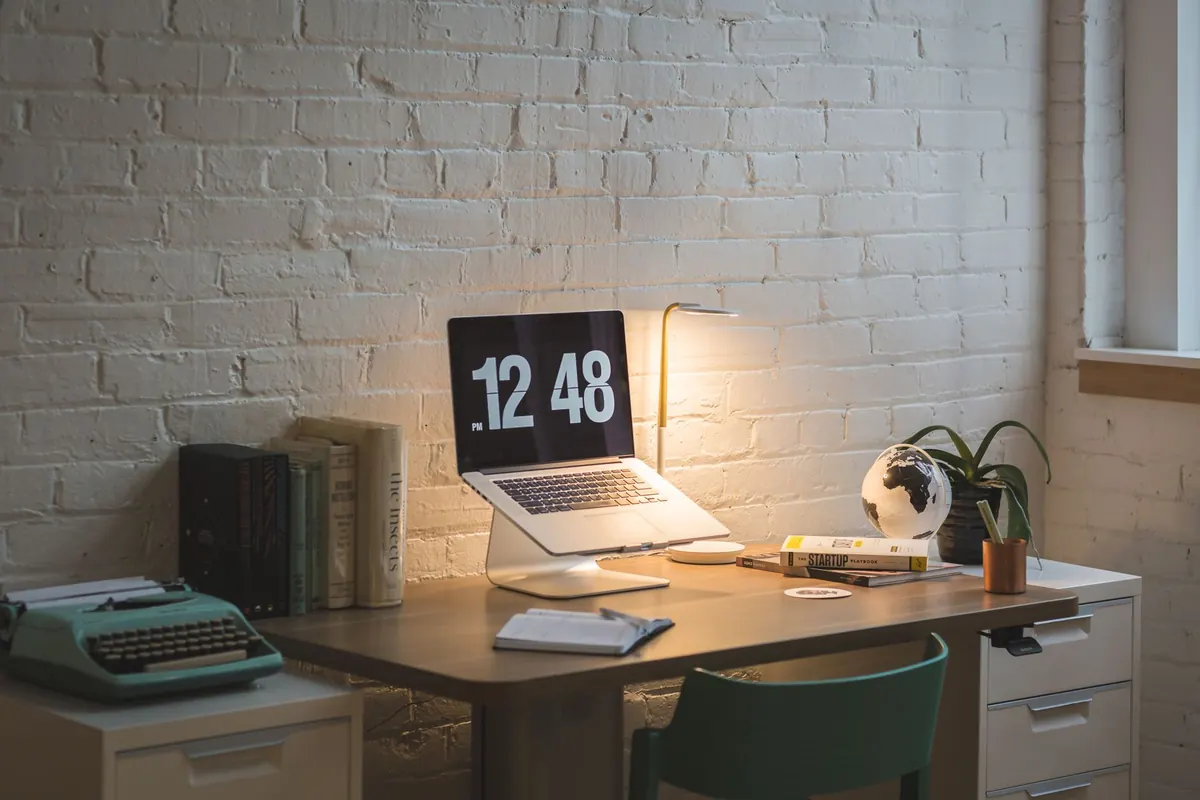
Privacy has a physical layer that gets ignored. Position your desk so your screen isn't visible through a window or from a doorway. Check what's behind you before a video call — a whiteboard with client names, a stack of invoices, a monitor showing a dashboard.
Keep contracts, tax paperwork, and anything with account numbers in a lockable drawer or cabinet rather than a desk tray. Shred documents you no longer need instead of recycling them intact. If you print sensitive material, collect it immediately; many printers retain the last job in memory until it's overwritten or cleared.
Treat Smart Home Devices as Untrusted Guests
Smart plugs, cameras, doorbells, thermostats, and voice assistants are the weakest links in most homes. They get infrequent updates, they phone home constantly, and they're often managed through an app with a password you set years ago.
- Move every smart device onto the guest or IoT network, away from work machines.
- Change default passwords and enable two-factor authentication on each manufacturer account.
- Review app permissions and revoke access you don't recognize.
- Disable features you don't use — cloud recording, voice purchasing, remote access from outside the home.
- Check for firmware updates monthly; many apps bury this setting in device details.
- Use the physical microphone or camera switch when you're not actively using the device.
Be deliberate about where voice assistants sit. If a speaker can hear your desk, assume it can hear a confidential call. Move it to another room or mute it during meetings. For anything with a camera, consider a sliding cover.
A Maintenance Routine That Takes Ten Minutes a Month
Security isn't a one-time setup; it's a habit with a short list. Put a recurring reminder in your calendar and work through it:
- Monthly: install pending updates on the router, laptop, and phone; skim the list of connected devices in your router app; check for new app permissions.
- Quarterly: test one backup restore, review who has access to shared folders and cloud accounts, and remove accounts for people who no longer need them.
- Yearly: replace aging hardware that no longer receives security updates, and review your recovery codes and emergency contacts.
None of this is glamorous, and you won't notice it working. That's the point. A 20-minute routine done consistently will protect you better than an ambitious weekend overhaul you never repeat.
One last note: if you handle regulated data — health records, financial information, legal files, or client data covered by a contract — check your specific obligations before deciding what's good enough. A qualified compliance or legal professional can tell you what your industry requires; general home-office hardening is a foundation, not a substitute for that advice.
Photo: Burst / Pexels

CCPA vs. GDPR: Key Differences Every Business Needs to Know
The CCPA and GDPR both protect personal data, but they differ in scope, consent models, consumer rights...
How to Create a Strong Password Policy for Your Remote Team
A practical guide to building a password policy remote teams will actually follow, covering password...
About Us